

How to Digitize Your Old Photos and Organize Them for Narrin
Preserving the past and preparing your memories for the future
PHOTO ORGANIZATION & PRESERVATION
Manfred Maiers
5/30/20263 min read
How to Digitize Your Old Photos and Organize Them for Narrin
Preserving the past and preparing your memories for the future
Many of our most valuable memories still live in:
photo albums.
shoeboxes.
framed pictures.
negative sleeves.
old prints tucked away in drawers.
Unfortunately, printed photographs fade, become damaged, or get lost over time.
Digitizing your photos is one of the best ways to preserve family history and prepare those memories for future storytelling experiences in Narrin Studio.
This guide will walk you through the process of:
digitizing old photos.
organizing them efficiently.
preserving important date information.
preparing them for import into Narrin Studio.
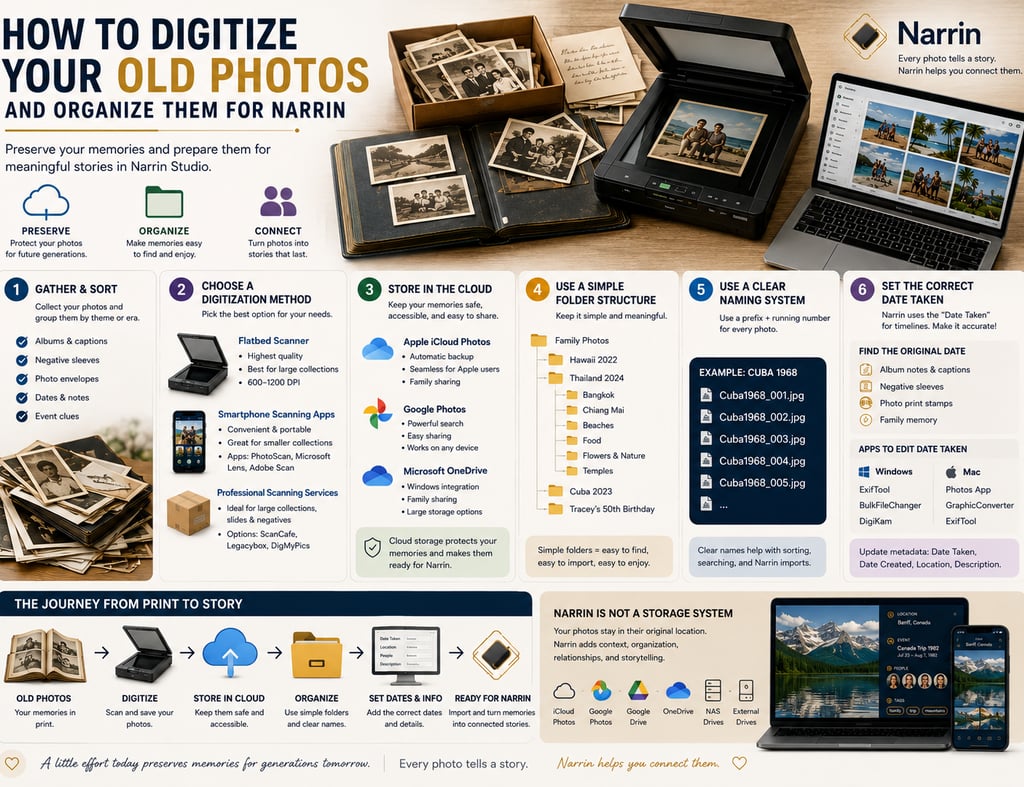
Step 1: Gather and Sort Your Photos
Before scanning anything, spend some time organizing your collection.
Group photos into logical categories such as:
Family Photos
Childhood
Weddings
Vacations
Holidays
School Years
Anniversaries
Military Service
Family History
Look for information that may help identify dates later:
album captions.
handwritten notes.
photo envelopes.
negative sleeves.
date stamps on prints.
event invitations.
postcards.
travel documents.
Even an approximate year is extremely valuable.
Remember:
The date information you capture now will help Narrin build accurate timelines later.
Step 2: Choose a Digitization Method
There are several ways to digitize photos depending on your budget, quality requirements, and collection size.
Option 1: Flatbed Scanner (Recommended)
Best for:
highest quality.
archival preservation.
family history projects.
Popular scanners:
Epson Perfection V600
Epson FastFoto FF-680W
Canon CanoScan series
Recommended settings:
600 DPI for standard photos.
1200 DPI for small prints.
save as JPG or TIFF.
Advantages:
excellent image quality.
color correction.
long-term preservation.
Option 2: Smartphone Scanning Apps
Best for:
smaller collections.
convenience.
quick digitization.
Popular apps:
Google PhotoScan
Available on:
iPhone
Android
Benefits:
automatic glare removal.
edge detection.
easy sharing.
Microsoft Lens
Benefits:
document and photo scanning.
OneDrive integration.
Adobe Scan
Benefits:
image enhancement.
cloud integration.
Option 3: Professional Scanning Services
Best for:
very large collections.
slides.
negatives.
fragile photos.
Popular services:
ScanCafe
Legacybox
DigMyPics
These services can process thousands of photos and often include:
color restoration.
slide scanning.
negative scanning.
Step 3: Store Photos in the Cloud
Once digitized, avoid storing your only copy on a local computer.
Instead, upload your collection to a cloud-based system.
Recommended options:
Apple iCloud Photos
Ideal for Apple users.
Benefits:
automatic backup.
family sharing.
seamless integration.
Google Photos
Benefits:
powerful search.
easy sharing.
excellent mobile support.
Microsoft OneDrive
Benefits:
Windows integration.
family sharing.
large storage plans.
Cloud storage provides:
backup protection.
access from anywhere.
easier family collaboration.
future Narrin integration.
Step 4: Use a Simple Folder Structure
Avoid creating complicated folder hierarchies.
Simple is better.
Examples:
Family Photos
Hawaii 2022
Thailand 2024
Cuba 2023
Tracey's 50th Birthday
Wedding Anniversary Cruise
Subfolders can help when needed:
Thailand 2024
Bangkok
Chiang Mai
Beaches
Food
Flowers & Nature
Temples
The goal is easy identification years from now.
Step 5: Create Meaningful File Names
Most scanners create generic names like:
IMG0001.jpg
or
SCAN12345.jpg
These names become difficult to manage over time.
Instead, use a simple naming convention:
Event Name + Sequential Number
Examples:
Hawaii2022_001.jpg
Hawaii2022_002.jpg
Hawaii2022_003.jpg
Or:
Cuba1968_001.jpg
Cuba1968_002.jpg
Cuba1968_003.jpg
Benefits:
easy sorting.
logical sequencing.
easier imports.
easier searching.
This becomes especially useful when importing large collections into Narrin Studio.
Step 6: Correct the Date Information
This is one of the most important steps.
Most scanned photos receive today's date when they are digitized.
Example:
Original photo taken:
June 1978
Scanner date:
May 2026
If not corrected, Narrin will place the photo incorrectly on your timeline.
Why Dates Matter in Narrin
Narrin uses photo date information to:
build timelines.
sequence stories.
organize events.
create life journeys.
connect memories chronologically.
The more accurate your dates, the better the storytelling experience.
Where to Find Original Dates
Look for clues:
Photo Albums
Handwritten notes often include:
dates.
locations.
event descriptions.
Negative Sleeves
Many film developers printed:
processing dates.
order numbers.
Photo Print Stamps
Older photos often have dates printed on the back.
Family Memory
Even approximate dates are useful:
Summer 1978
Christmas 1982
Spring 1990
Approximate dates are far better than using the scan date.
Tools for Updating Date Taken Information
Several tools allow you to edit photo metadata.
Windows
ExifTool
Professional-grade metadata editor.
Pros:
powerful.
supports batch processing.
BulkFileChanger
Simple interface for modifying file dates.
DigiKam
Photo management software with metadata editing.
Mac
Photos App
Allows metadata editing after import.
GraphicConverter
Popular Mac image management tool.
ExifTool
Available for macOS.
Recommended Metadata Fields
When possible, update:
Date Taken.
Date Created.
Location.
Description.
These fields provide additional context that Narrin can use later.
Preparing for Narrin Studio
Once your collection is digitized and organized, Narrin Studio can help transform those photos into connected stories.
A simple folder:
Hawaii 2022
Can become:
Event:
Family Vacation 2022
Location:
Oahu, Hawaii
People:
Family members and friends
Tags:
Vacation, Beach, Family, Favorite
Timeline:
Connected to the larger story of your life.
Narrin Does Not Store Your Photos
One important distinction:
Narrin Studio is not a cloud storage provider.
Your original files remain exactly where they are today:
Apple iCloud.
Google Photos.
Google Drive.
Microsoft OneDrive.
local storage.
NAS systems.
external drives.
Narrin adds:
context.
organization.
relationships.
storytelling.
Without moving or duplicating your files.
Preserve Today. Discover Tomorrow.
Every old photo contains a story waiting to be rediscovered.
A little effort spent digitizing and organizing your collection today can preserve those memories for generations to come.
And when those memories are ready, Narrin Studio can help connect them into meaningful stories that bring the past back to life.
Because every photo tells a story.
Narrin helps you connect them.